---
title: Saved Searches
description: Saved Searches help you quickly find recruits who match your personalized recruiting criteria.
---
[Skip to content](https://coach-helpdesk.ncsasports.org/saved-searches#main-content)
English
Show submenu for translations

Open main navigation
Close main navigation
- English
Show submenu for translations
- Contact us
Contact us
How can we help you?
- There are no suggestions because the search field is empty.
1. [NCSA Coach Help Guide](https://coach-helpdesk.ncsasports.org/?hsLang=en)
2. [Getting started](https://coach-helpdesk.ncsasports.org/getting-started?hsLang=en)
# Saved Searches
## Saved Searches help you quickly find recruits who match your personalized recruiting criteria.
When setting up your Coach 2.0 account you may remember setting up your first saved search, but it doesn't have to stop there.
**Creating a Saved Search:**
Step #1: Navigate to Search and select the filters that best fit your recruiting needs
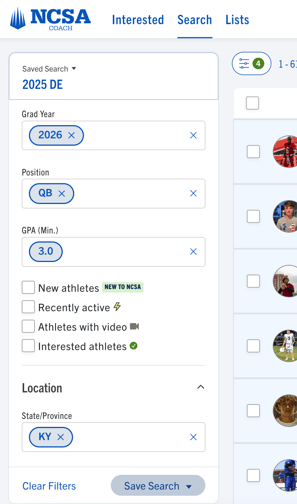
Step #2: Once you select your filter click Save Search and Create New

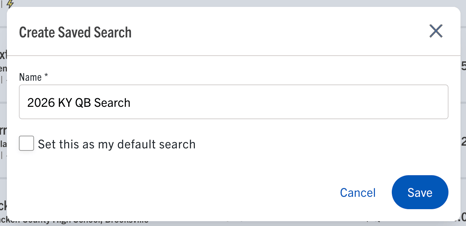
Step #3: Name your new Saved Search and click save.
NOTE: If you select *Set this as my default search,* this saved search will automatically open when you click on Search.
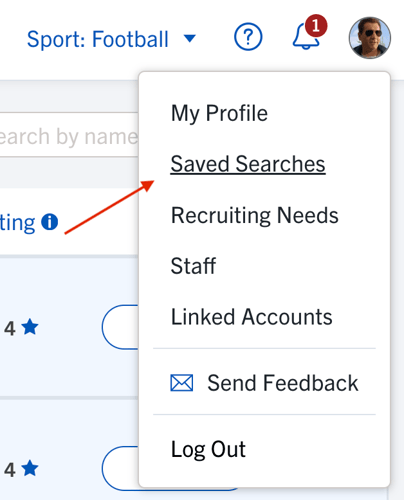
**Editing a Saved Search:**
Step #1: In the main dropdown select Saved Searches
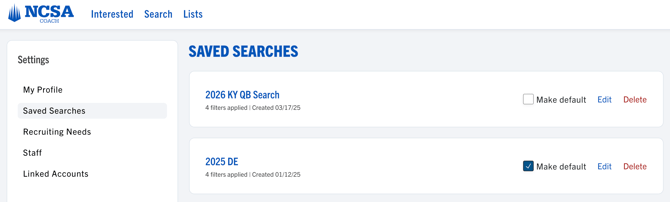
Step #2: From this page, you can manage your Saved Searches by editing filters, renaming the title, or deleting the search altogether.
- [Getting started](https://coach-helpdesk.ncsasports.org/getting-started?hsLang=en)
- [Manage Staff](https://coach-helpdesk.ncsasports.org/manage-staff?hsLang=en)
- [Messaging](https://coach-helpdesk.ncsasports.org/messaging?hsLang=en)
- [Mobile Access](https://coach-helpdesk.ncsasports.org/mobile-access?hsLang=en#main-content)
- [Mobile](https://coach-helpdesk.ncsasports.org/mobile-access?hsLang=en#mobile)
- [NCSA Coach Training Webinar](https://coach-helpdesk.ncsasports.org/ncsa-coach-training-webinar?hsLang=en)
- [New Features](https://coach-helpdesk.ncsasports.org/new-features?hsLang=en)
- [Training Sessions](https://coach-helpdesk.ncsasports.org/training-sessions?hsLang=en)
[](http://frontrush.com)
[collegecoaches@ncsasports.org](https://coach-helpdesk.ncsasports.org/collegecoaches@ncsasports.org?hsLang=en)
[mailto:collegecoaches@ncsasports.org](mailto:collegecoaches@ncsasports.org)
Follow us on social!